To create an email address for your domain, follow these steps −
- Click on the Email Accounts link found in your Emails section of the cPanel Home.
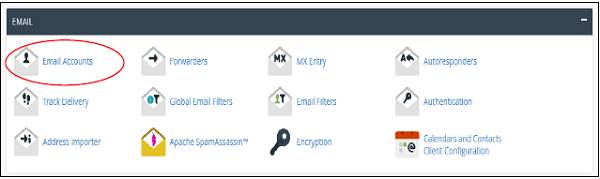
- In Email Accounts, you will find Add Email Account on the Top.
- Add Email name you want to create as it will be the text that comes before @.
- Choose a strong password and supply Mailbox Quota. It defines how much disk space this account can use. You can provide a specific amount of space in MB or you can provide an unlimited quota for this.
- Click on Create Account to create an Email address associated with your domain.
Manage Email Accounts
You can manage your email accounts through this interface, you can change your passwords, change quota amount or delete the email account. To manage your email accounts, scroll down to see the list of email accounts that exist with your domain.
Change Passwords
To change your email account password, click the 'Change Password' link corresponding to your email address. Enter the new password, and save changes by pressing the 'Change Password' button.
Change Quota
To change your email quota, click on 'Change Quota' link corresponding to the email address that you want to manage. Enter a limited quota in Megabytes or select unlimited options. Press the 'Change Quota' button to save the changes.
Configure Mail Client
To send and receive emails with your domain from any desktop or mobile email client, e.g. Windows Live Mail, Outlook or iOS of iPhone, etc. cPanel provides you with preconfigured settings for these applications. You just need to download and run the settings file and it will automatically configure the email client. You may need to enter your email account password. You can also manually configure the email clients for sending and receiving emails for your email client.
To download Auto Configuration Scripts or see the manual settings, click on the "Configure Mail Client" link corresponding to your email account.
Once the interface is open, you will see Auto Configuration Scripts.
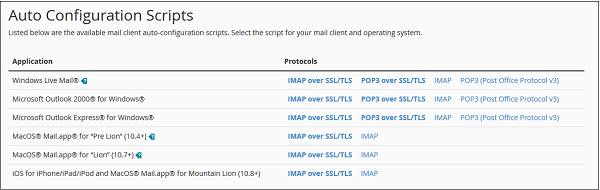
You can download Auto Configuration Scripts to configure the mail client interface. Just download the appropriate settings and run the file.
Or if you want to configure your mail client manually, you can scroll down to see the manual settings.
Note − There are four types of settings – IMAP and POP3, both over SSL/TLS and Non-SSL too. Using SSL sends your messages with encryption providing an extra layer of security, but Non-SSL does not. It is recommended that you use settings with SSL. From IMAP or POP3, you can choose anyone you want. Both will work perfectly.
